
 MElkhateeb
Introduction
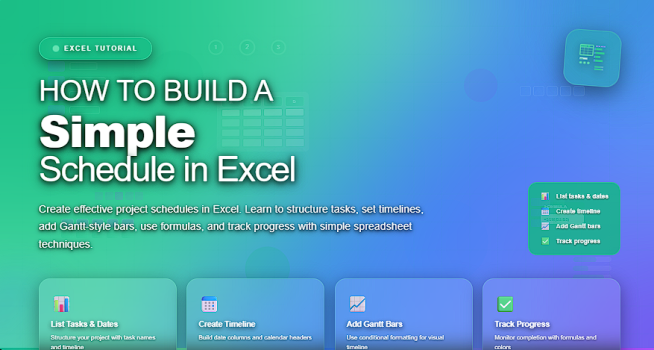
Scheduling is one of the most critical disciplines in project management. Regardless of project size or industry, a clear and well-structured schedule provides visibility, accountability, and control. While advanced project management tools are widely available, Excel continues to be one of the most practical and reliable solutions for building simple, effective schedules—especially during early planning stages or for small to medium projects.
Top 5 Project Management Software
A simple schedule is not a compromise. When designed correctly, it becomes a powerful management tool that supports decision-making, progress tracking, and stakeholder communication. This article explains how to build a simple schedule in Excel using proven project management principles.
Why Excel Is Still a Strong Scheduling Tool
Excel remains widely used in project environments because it combines flexibility with familiarity. Most teams already know how to use it, which eliminates training overhead and reduces resistance to adoption. It allows project managers to customize schedules to their exact needs while keeping the structure transparent and easy to maintain.
Excel is particularly effective when:
• The project scope is clear
• The team size is limited
• The schedule needs to be shared quickly
• Simplicity and clarity are priorities
In many organizations, Excel serves as the foundation before moving to more advanced scheduling systems.
Step 1: Define the Purpose of the Schedule
Before creating any structure in Excel, the purpose of the schedule must be clearly defined. A schedule can serve different objectives depending on the project context.
Common purposes include:
• Planning and sequencing work
• Tracking progress
• Communicating timelines to stakeholders
• Supporting resource coordination
A simple schedule typically focuses on tasks, dates, responsibilities, and status. Defining this upfront prevents unnecessary complexity and ensures the schedule remains practical.
Step 2: Create the Core Schedule Structure
Open a new Excel worksheet and define a clear set of column headers. A professional yet simple schedule usually includes:
• Task Name
• Start Date
• End Date
• Duration
• Owner
• Status
This structure aligns with standard project scheduling practices while remaining easy to read and update.
Consistency is essential. Once the structure is defined, it should remain stable throughout the project lifecycle.
Step 3: Break the Work into Clear Tasks
List all required tasks in the Task Name column. Each task should represent a single, identifiable activity that can be planned, assigned, and tracked.
Effective task definition follows these principles:
• Tasks are specific and action-oriented
• Tasks have a clear beginning and end
• Tasks can be assigned to one owner
• Tasks are measurable
Avoid broad or ambiguous descriptions, as they reduce accountability and make tracking difficult.
Step 4: Define Start and End Dates
For each task, assign realistic start and end dates. These dates should reflect logical sequencing, dependencies, and available capacity.
Excel’s date functionality enables:
• Sorting tasks chronologically
• Filtering work by timeframe
• Identifying overlaps and gaps
Dates should be reviewed regularly to reflect actual progress rather than initial assumptions.
Step 5: Determine Task Duration
Duration represents the total time required to complete each task. It can be calculated automatically using Excel formulas or entered manually when appropriate.
Tracking duration helps:
• Identify long or high-risk activities
• Balance workloads
• Detect schedule compression issues
Even in simple schedules, duration provides valuable insight into project feasibility.
Step 6: Assign Clear Ownership
Every task must have one clearly defined owner. Ownership establishes accountability and ensures that responsibility for completion is unambiguous.
Owners may be individuals or defined roles, depending on project structure. What matters is that responsibility is clear and visible to everyone using the schedule.
Step 7: Track Task Status
Adding a status column transforms the schedule from a static plan into a live management tool. Typical status values include:
• Not Started
• In Progress
• Completed
• Delayed
Status tracking supports regular reviews, enables early identification of issues, and improves communication with stakeholders.
Step 8: Improve Readability and Usability
A schedule must be easy to read to be effective. Simple formatting enhancements significantly improve usability.
Recommended practices include:
• Freezing the header row
• Using light borders
• Applying consistent date formats
• Using subtle color indicators for status
The goal is clarity, not decoration.
Common Mistakes to Avoid
Even simple schedules can fail if basic principles are ignored. Common mistakes include:
• Overloading the schedule with unnecessary detail
• Failing to update dates and status
• Assigning tasks without clear ownership
• Using unrealistic timelines to meet expectations
A simple, honest schedule is far more valuable than a complex but inaccurate one.
Final Thoughts
Building a simple schedule in Excel is a fundamental project management skill. When structured correctly and maintained consistently, it provides clarity, control, and confidence throughout project execution.
Excel does not limit professionalism—poor planning does. A well-designed simple schedule often outperforms complex tools when discipline and clarity are applied.