 MElkhateeb
➡️ Introduction
For many beginners, project management software can feel intimidating — especially tools that look complex at first glance.
Microsoft Project is one of those tools. It is powerful, widely used, and highly respected — but often misunderstood by new users.
Top 5 Project Management Software
Microsoft Project is not just a scheduling tool. It is a planning and control system designed to help project managers organize tasks, manage timelines, allocate resources, and track progress in a structured way.
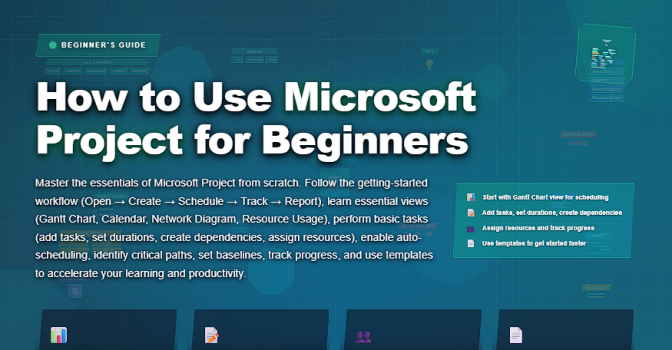
This article explains how beginners can start using Microsoft Project step by step, what each core feature does, and how to avoid the most common early mistakes. The goal is clarity — not complexity.
✅ What Is Microsoft Project? (Beginner Explanation)
Microsoft Project is a project management application used to:
✔️ create project schedules
✔️ define tasks and milestones
✔️ manage dependencies
✔️ allocate resources
✔️ track progress against a baseline
✔️ monitor delays and risks
Unlike simple to-do lists or spreadsheets, Microsoft Project understands time, logic, and dependencies.
When one task changes, the schedule adjusts automatically — this is its core strength.
✅ When Should Beginners Use Microsoft Project?
Microsoft Project is best used when:
✔️ projects have multiple tasks and dependencies
✔️ timelines matter
✔️ delays affect other work
✔️ resources are shared or limited
✔️ progress must be tracked formally
✔️ stakeholders expect structured plans
For very small or informal work, simpler tools may be enough.
For real projects with deadlines, Microsoft Project becomes extremely valuable.
📌 Key Concepts Beginners Must Understand First
Before opening the software, beginners should understand these fundamentals:
1️⃣ Tasks
Tasks are individual pieces of work with a start, finish, and duration.
2️⃣ Dependencies
Tasks are often linked. One task may need to finish before another can start.
3️⃣ Duration
Duration is how long a task takes — not effort.
4️⃣ Resources
Resources are people, equipment, or materials assigned to tasks.
5️⃣ Schedule Logic
Microsoft Project calculates dates based on task relationships and calendars — not guesses.
Understanding these concepts prevents confusion later.
➡️ Step-by-Step: How to Use Microsoft Project for Beginners
Step 1: Create a New Project
When you open Microsoft Project:
✔️ Select Blank Project
✔️ Set the project start date
✔️ Confirm working days and hours (calendar)
This defines how the schedule will be calculated.
Step 2: Enter Tasks
In the task table:
✔️ Enter task names
✔️ Add durations (e.g., 5 days, 2 weeks)
✔️ Leave start and finish dates blank
Microsoft Project calculates dates automatically.
Step 3: Create Task Dependencies
Link tasks logically:
✔️ Select related tasks
✔️ Click Link Tasks
This tells the system how work flows.
Dependencies prevent unrealistic scheduling.
Step 4: Add Milestones
Milestones represent key checkpoints:
✔️ Set duration to 0 days
✔️ Use them to mark approvals or phase completions
They help track progress clearly.
Step 5: Add Resources
In the Resource Sheet:
✔️ Add team members
✔️ Define availability
✔️ Set standard working hours
Resources help identify overload early.
Step 6: Assign Resources to Tasks
Assign people to tasks:
✔️ Select a task
✔️ Assign one or more resources
Microsoft Project will highlight overload automatically.
Step 7: Set a Baseline
Once the plan is approved:
✔️ Save a baseline
This allows you to compare planned vs. actual performance later.
Step 8: Track Progress
During execution:
✔️ Update % complete
✔️ Enter actual start/finish dates
✔️ Review schedule variance
This turns the plan into a control tool.
➡️ Beginner Workflow Overview in Microsoft Project
✅ Beginner Workflow in Microsoft Project
A simple, logical way to build and manage your first project plan.
| Step | Action | Purpose |
|---|---|---|
| Create Project | Set start date and calendar | Defines how time is calculated |
| Enter Tasks | List tasks with durations | Builds the project structure |
| Link Tasks | Define dependencies | Creates realistic scheduling logic |
| Add Resources | Define people and availability | Enables workload tracking |
| Set Baseline | Save approved plan | Allows performance comparison |
| Track Progress | Update actuals | Controls schedule and delivery |
❌ Common Beginner Mistakes in Microsoft Project
❌ manually typing start and finish dates
❌ ignoring dependencies
❌ assigning resources before defining logic
❌ planning with 100% availability
❌ skipping baseline creation
❌ treating the tool as a static document
These mistakes reduce the value of the software.
⭐ Best Practices for Beginners
✔️ let the system calculate dates
✔️ focus on logic, not formatting
✔️ keep tasks simple and measurable
✔️ review workload regularly
✔️ update progress consistently
✔️ learn one feature at a time
⭐ Final Thoughts
Microsoft Project may look complex, but its purpose is simple:
to bring structure, logic, and visibility to project planning.
For beginners, success comes from:
✔️ understanding core concepts
✔️ building schedules step by step
✔️ trusting the scheduling logic
✔️ using the tool consistently
Great project managers don’t use Microsoft Project to look professional.
They use it to think clearly, plan realistically, and deliver predictably.