 MElkhateeb
➡️ Introduction
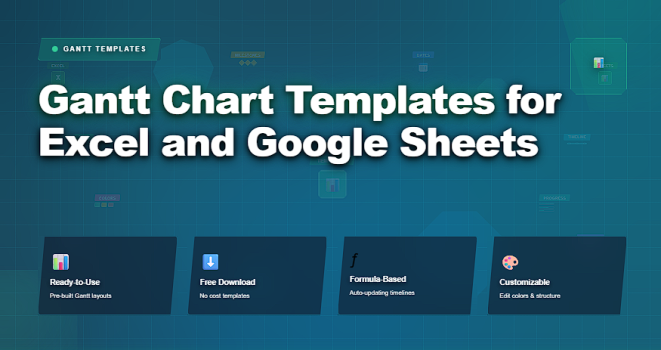
In project planning, clarity is everything. Deadlines, dependencies, task owners, and timelines must all be visible — and a Gantt chart is one of the most effective ways to display that information.
Top 5 Project Management Software
While there are many advanced project management tools available, Excel and Google Sheets remain the most accessible places to build Gantt charts, because they are free (or widely available), flexible, and familiar to teams of all sizes.
This article explains what Gantt charts are, why templates accelerate planning, and how to use them in Excel and Google Sheets. Whether you’re managing a simple project or coordinating complex milestones, well-designed templates help you plan faster, communicate clearer, and adapt smarter.
✅ What Is a Gantt Chart?
A Gantt chart is a visual timeline that shows:
✔️ tasks and activities
✔️ start and end dates
✔️ task durations
✔️ sequencing and dependencies
✔️ progress and milestones
It provides a time-based view of work, making it easy to see overlaps, bottlenecks, and critical paths.
Gantt charts are especially useful when:
✔ tasks have dependencies
✔ deadlines matter
✔ multiple people work in parallel
✔ timelines evolve over time
✅ Why Use Templates for Gantt Charts?
Building a Gantt chart from scratch can be time-consuming and error-prone. Templates provide:
✔️ pre-formatted structure
✔️ automation via formulas
✔️ visual consistency
✔️ time savings
✔️ fewer setup mistakes
Templates allow teams to focus on planning — not formatting.
📌 Key Elements of a Good Gantt Chart Template
A strong template should include:
1️⃣ Task List
Clear task names with objective descriptions.
2️⃣ Start Date
Indicates when work should begin.
3️⃣ End Date OR Duration
Defines how long the task will take.
4️⃣ Timeline Bars
Visual representation of task duration across dates.
5️⃣ Progress Indicator
Shows completion percentage or status.
6️⃣ Optional Dependencies
Links between tasks that control sequencing.
When designed properly, these elements make schedules easy to read and update.
✅ Gantt Chart Templates for Excel & Google Sheets
Templates and use cases for spreadsheet-based scheduling.
| Template Type | Platform | Best For |
|---|---|---|
| Simple Gantt Template | Excel & Google Sheets | Basic project timelines with start/end dates |
| Color-Coded Phase Gantt | Excel & Google Sheets | Multi-phase projects with visual phase separation |
| Progress Tracking Gantt | Excel & Google Sheets | Showing % complete alongside schedule |
| Dynamic Date Gantt | Excel & Google Sheets | Schedules with auto-calculated durations |
| Milestone Gantt Template | Excel & Google Sheets | Highlighting key delivery checkpoints |
| Team Resource Gantt | Excel & Google Sheets | Schedules with assigned owners and work tracking |
➡️ How to Use These Templates (Quick Guidance)
Simple Gantt Template
✔ Use for straightforward projects
✔ Enter task, start/end dates
✔ Visualize via conditional formatting bars
Color-Coded Phase Gantt
✔ Assign colors to phases
✔ Improves stakeholder clarity
Progress Tracking Gantt
✔ Add a % Complete column
✔ Use progress bars or shading
Dynamic Date Gantt
✔ Use formulas to auto-calculate durations
✔ Reduce manual updates
Milestone Gantt Template
✔ Zero-duration milestones
✔ Clearly show key delivery checkpoints
Team Resource Gantt
✔ Add owner columns
✔ Highlight overload or gaps
❌ Common Mistakes with Spreadsheet Gantt Charts
❌ building Gantt charts without formulas
❌ placing dates manually without structure
❌ mixing too many indicators in one sheet
❌ ignoring version history or comments
❌ failing to update progress regularly
❌ ignoring weekends or holidays
These mistakes reduce readability and usefulness.
⭐ Best Practices
✔ lock key formulas
✔ standardize color schemes
✔ use consistent date formats
✔ keep sheets lean and focused
✔ add legends for visual aids
✔ share with comment access for feedback
⭐ Final Thoughts
Excel and Google Sheets are often underestimated, but with thoughtfully designed templates, they can function as practical, lightweight scheduling systems.
Templates save setup time, reduce error, and make schedules easier to understand.
Whether you are:
✔ planning a short project
✔ coordinating cross-team delivery
✔ tracking milestones
✔ assigning work
Spreadsheet Gantt charts are a reliable, accessible option — and templates make them even more effective.