 MElkhateeb
➡️ Introduction
Clear timelines are the backbone of effective project execution.
Without a visible and realistic timeline, teams struggle to understand priorities, dependencies, and delivery expectations — even when tasks are clearly defined.
Top 5 Project Management Software
Smartsheet is widely used by project managers because it combines the familiarity of spreadsheets with powerful timeline, dependency, and automation capabilities. When used correctly, Smartsheet timelines provide both planning discipline and execution visibility.
This article explains how to build timelines in Smartsheet step by step, how its timeline and Gantt features work, and how project managers can avoid common mistakes while planning schedules.
✅ What Is a Timeline in Smartsheet?
A timeline in Smartsheet is a time-based visual representation of project work that shows:
✔️ tasks over time
✔️ start and finish dates
✔️ dependencies between tasks
✔️ milestones and key deliverables
✔️ overall project duration
Smartsheet timelines are dynamic.
When task dates, dependencies, or durations change, the timeline updates automatically — ensuring the schedule reflects reality.
✅ Timeline View vs Gantt View in Smartsheet
Smartsheet offers two closely related scheduling views:
Timeline View
✔️ Simplified, high-level timeline
✔️ Ideal for stakeholder communication
✔️ Focuses on phases and major tasks
Gantt View
✔️ Detailed, dependency-driven schedule
✔️ Ideal for project planning and control
✔️ Shows task relationships and critical sequencing
Project managers often build schedules in Gantt View and communicate progress using Timeline View.
📌 When Should You Use Smartsheet for Timeline Planning?
Smartsheet is especially effective when:
✔️ projects have clear task structures
✔️ dependencies influence delivery dates
✔️ teams prefer spreadsheet-style planning
✔️ stakeholders need visual schedules
✔️ work spans multiple phases or teams
✔️ schedules must adapt to change
For teams transitioning from Excel to more structured planning, Smartsheet is a natural step forward.
📌 Core Elements of a Smartsheet Timeline
Before building a timeline, ensure these elements are defined:
1️⃣ Task List
Clear, measurable tasks with defined scope.
2️⃣ Start and End Dates
Dates that drive timeline placement.
3️⃣ Duration
How long tasks take, not how much effort they require.
4️⃣ Dependencies
Logical links that control task sequence.
5️⃣ Milestones
Zero-duration markers for key events.
These elements form the foundation of a reliable timeline.
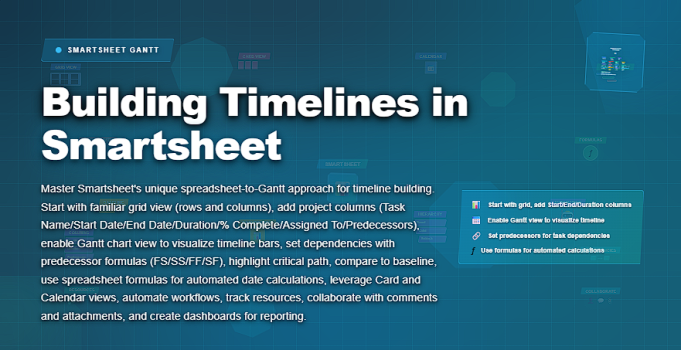
➡️ How to Build a Timeline in Smartsheet (Step by Step)
Step 1: Create or Open a Sheet
✔️ Start with a blank sheet or project template
✔️ Ensure date columns are set correctly
✔️ Confirm working days and calendars
This defines how Smartsheet calculates time.
Step 2: Enter Tasks and Dates
✔️ List tasks in rows
✔️ Enter start and end dates or durations
✔️ Keep tasks clear and concise
Avoid manually forcing dates before dependencies are defined.
Step 3: Enable Gantt View
✔️ Switch to Gantt View
✔️ Verify that timeline bars appear
✔️ Adjust zoom level for clarity
This activates visual scheduling.
Step 4: Define Dependencies
✔️ Link tasks logically
✔️ Use finish-to-start relationships where appropriate
Dependencies ensure realistic timelines.
Step 5: Add Milestones
✔️ Set duration to zero
✔️ Use milestones for approvals or phase completions
Milestones create clear checkpoints.
Step 6: Review Timeline for Conflicts
✔️ Check overlaps and bottlenecks
✔️ Identify unrealistic sequencing
✔️ Adjust durations or dependencies
This step prevents future delays.
Step 7: Share the Timeline
✔️ Share Timeline View with stakeholders
✔️ Use Gantt View internally for control
This balances detail with clarity.
✅ Building Timelines in Smartsheet – Practical Workflow
A structured approach to planning and maintaining project schedules.
| Step | Action | Purpose |
|---|---|---|
| Define Tasks | Create clear, scoped task rows | Establishes the work structure |
| Set Dates & Duration | Enter realistic start, end, or duration values | Positions tasks correctly on the timeline |
| Link Dependencies | Define task relationships | Ensures logical sequencing |
| Add Milestones | Mark key delivery points | Improves progress visibility |
| Review Timeline | Check for conflicts and overlaps | Prevents unrealistic schedules |
| Share & Update | Communicate timeline and track changes | Keeps stakeholders aligned |
✅ Building Timelines in Smartsheet – Practical Workflow
A structured approach to planning and maintaining project schedules.
| Step | Action | Purpose |
|---|---|---|
| Define Tasks | Create clear, scoped task rows | Establishes the work structure |
| Set Dates & Duration | Enter realistic start, end, or duration values | Positions tasks correctly on the timeline |
| Link Dependencies | Define task relationships | Ensures logical sequencing |
| Add Milestones | Mark key delivery points | Improves progress visibility |
| Review Timeline | Check for conflicts and overlaps | Prevents unrealistic schedules |
| Share & Update | Communicate timeline and track changes | Keeps stakeholders aligned |
❌ Common Mistakes When Building Timelines in Smartsheet
❌ manually forcing dates without dependencies
❌ creating overly large tasks
❌ ignoring milestone tracking
❌ updating dates without reviewing impacts
❌ using Timeline View without validating logic
❌ treating the timeline as static
These mistakes reduce schedule reliability.
⭐ Best Practices for Project Managers
✔️ define logic before adjusting dates
✔️ use dependencies to protect the schedule
✔️ keep tasks small and trackable
✔️ review timelines weekly
✔️ use Timeline View for communication
✔️ adapt plans as conditions change
⭐ Final Thoughts
Building timelines in Smartsheet is not about creating perfect schedules —
it’s about creating realistic, adaptable plans.
When used correctly, Smartsheet timelines help teams:
✔️ understand delivery expectations
✔️ anticipate risks early
✔️ coordinate work across teams
✔️ communicate clearly with stakeholders
✔️ maintain control without complexity
Great project managers don’t rely on timelines alone.
They use timelines as thinking tools — and Smartsheet provides one of the most flexible environments to do exactly that.