 MElkhateeb
➡️ Introduction
Not every project needs paid software to be planned effectively.
For many teams, especially small organizations, startups, nonprofits, and early-stage projects, the biggest need is clarity and consistency, not advanced features.
Top 5 Project Management Software
This is where Google Sheets becomes surprisingly powerful.
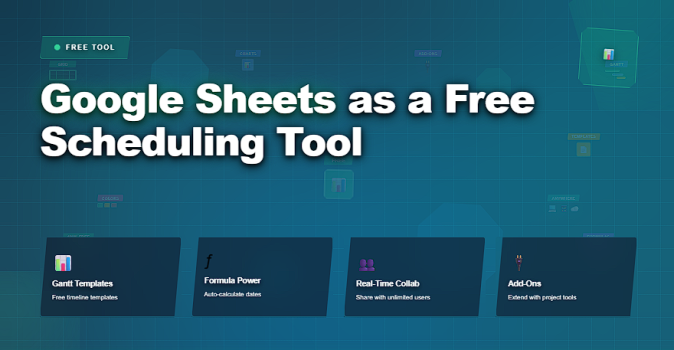
When structured correctly, Google Sheets can function as a free scheduling tool for planning timelines, coordinating tasks, tracking responsibilities, and maintaining visibility across a team — all without subscriptions, setup delays, or training overhead.
This article explains how Google Sheets can be used for scheduling, what it does well, where its limits are, and how project managers can design simple but effective schedules using spreadsheets.
✅ What Does “Scheduling” Mean in Google Sheets?
In Google Sheets, scheduling is not automated by default.
Instead, it is designed intentionally through structure, formulas, and visual cues.
A scheduling spreadsheet typically helps teams:
✔️ list tasks and activities
✔️ define start and end dates
✔️ track durations
✔️ assign owners
✔️ visualize timelines
✔️ identify overlaps or conflicts
Unlike dedicated tools, Google Sheets does not enforce logic — the logic comes from the design.
✅ When Is Google Sheets a Good Scheduling Choice?
Google Sheets works best when:
✔️ budgets are limited
✔️ teams need quick setup
✔️ schedules are relatively simple
✔️ dependencies are minimal
✔️ collaboration is important
✔️ transparency matters more than automation
For highly complex schedules with heavy dependencies, specialized tools are more efficient.
For accessible, flexible scheduling, Google Sheets is often more than enough.
📌 Core Elements of a Scheduling Sheet
A reliable scheduling sheet usually includes:
1️⃣ Task List
Clear, action-oriented task names.
2️⃣ Dates
Start date, end date, or both.
3️⃣ Duration
Calculated or entered duration to support timeline views.
4️⃣ Owner
Who is responsible for the task.
5️⃣ Status
Planned, in progress, blocked, or completed.
6️⃣ Visual Indicators
Colors, bars, or symbols that highlight progress and risks.
These elements transform a simple table into a usable schedule.
➡️ How to Build a Schedule in Google Sheets (Step by Step)
Step 1: Create a Scheduling Structure
Create columns for:
✔️ Task name
✔️ Start date
✔️ End date
✔️ Duration
✔️ Owner
✔️ Status
Consistency matters more than complexity.
Step 2: Calculate Durations Automatically
Use formulas to calculate duration:
✔️ End Date − Start Date
✔️ Exclude weekends if needed
This reduces manual errors.
Step 3: Add Conditional Formatting
Use colors to show:
✔️ overdue tasks
✔️ upcoming deadlines
✔️ completed work
Visual cues improve readability instantly.
Step 4: Build a Simple Timeline View
Create a horizontal date row and use formulas or formatting to display timeline bars.
This mimics a basic Gantt chart.
Step 5: Share and Collaborate
✔️ Share with view or edit access
✔️ Use comments for clarifications
✔️ Track changes in real time
This keeps everyone aligned.
✅ Scheduling Workflow Using Google Sheets
A simple, structured approach to planning without paid tools.
| Step | Action | Purpose |
|---|---|---|
| Define Tasks | List clear, measurable activities | Establishes scheduling foundation |
| Set Dates | Enter start and end dates | Positions tasks in time |
| Calculate Duration | Use formulas for time calculation | Reduces manual errors |
| Visualize Timeline | Apply bars or conditional formatting | Improves readability and planning |
| Assign Ownership | Define responsible person | Ensures accountability |
| Review Weekly | Update status and dates | Keeps schedule realistic |
❌ Common Mistakes When Using Google Sheets for Scheduling
❌ building schedules without consistent structure
❌ manually updating dates instead of using formulas
❌ overloading sheets with unnecessary columns
❌ ignoring version control
❌ using colors without meaning
❌ treating the sheet as static
These mistakes reduce reliability.
⭐ Best Practices
✔️ standardize column structure
✔️ automate calculations wherever possible
✔️ use visual indicators sparingly
✔️ protect key formulas
✔️ keep one source of truth
✔️ review schedules regularly
⭐ Final Thoughts
Google Sheets may be free, but it is not basic.
When designed thoughtfully, it can function as a practical scheduling system that supports planning, coordination, and accountability — without software costs or complexity.
Google Sheets works best when:
✔️ schedules are simple
✔️ collaboration is frequent
✔️ transparency matters
✔️ teams value flexibility
Great project managers don’t rely on tools alone.
They design clear systems — and Google Sheets can be one of the most effective systems when used with intention.