 MElkhateeb
➡️ Introduction
Most project delays are not caused by poor execution.
They are caused by poor visibility of time.
Top 5 Project Management Software
When teams cannot clearly see what is happening when, priorities blur, dependencies break, and deadlines start slipping quietly. A timeline fixes this by converting plans into a clear, chronological view that everyone can understand.
You do not need complex software to achieve this.
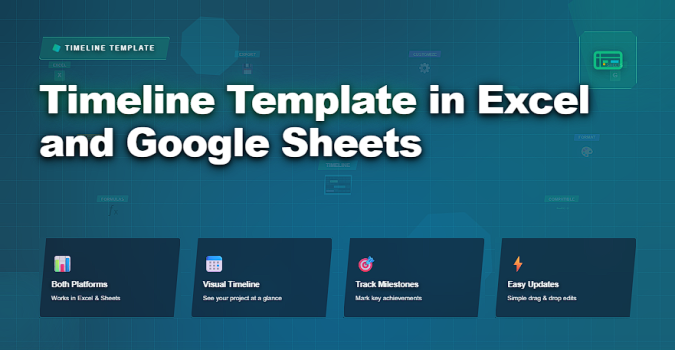
A well-designed timeline template in Excel or Google Sheets gives managers, team leads, and beginners a simple but powerful way to plan, track, and communicate progress — using tools they already know.
This article explains what a good timeline template includes, how to use it effectively, and why it works so well in Excel and Google Sheets.
✅ What a Timeline Template Actually Does
A timeline template is more than a list of dates.
It helps teams:
✔️ visualize phases and milestones
✔️ understand task sequencing
✔️ align work across time
✔️ identify overlaps and gaps
✔️ communicate plans quickly
The timeline becomes a shared reference point for the entire project.
✅ Why Excel and Google Sheets Are Ideal for Timelines
Excel and Google Sheets remain popular for planning because they are:
✔️ widely available
✔️ easy to customize
✔️ flexible for different project sizes
✔️ simple to share and update
✔️ familiar to most teams
For many projects, a spreadsheet timeline is not a limitation — it is an advantage.
✅ Key Elements of a Timeline Template
What every effective Excel or Google Sheets timeline should include.
| Element | Description | Why It Matters |
|---|---|---|
| Task or Phase Name | Defines what is being worked on | Creates clarity and structure |
| Start Date | When the activity begins | Anchors the timeline |
| End Date | When the activity finishes | Defines completion expectations |
| Duration | Total time required | Supports realistic planning |
| Milestones | Key checkpoints or deliverables | Improves stakeholder communication |
| Status / Progress | Current completion level | Enables tracking and control |
✅ How to Use a Timeline Template Effectively
A timeline template delivers value only when it is maintained.
Best practices:
✔️ define phases before adding detail
✔️ keep durations realistic
✔️ update progress regularly
✔️ highlight milestones clearly
✔️ review the timeline in meetings
✔️ adjust early when slippage appears
A timeline should guide decisions — not just display dates.
❌ Common Mistakes with Timeline Templates
❌ turning timelines into task lists
❌ using unrealistic dates
❌ updating only after delays occur
❌ ignoring dependencies between phases
❌ over-formatting instead of clarifying
Simplicity improves usability.
⭐ Best Practices
✔️ use one timeline per project
✔️ align timelines with workload reality
✔️ keep formatting clean and readable
✔️ share the timeline openly
✔️ combine timelines with risk awareness
✔️ review and refine continuously
⭐ Final Thoughts
A timeline template in Excel or Google Sheets is not a basic solution — it is a practical one.
When built clearly and used consistently, it gives teams shared visibility, managers control, and stakeholders confidence — without the overhead of complex tools.
Projects succeed not because timelines are advanced —
but because they are understood, updated, and trusted.